Make yours now
 Enough for 10 ten second videos


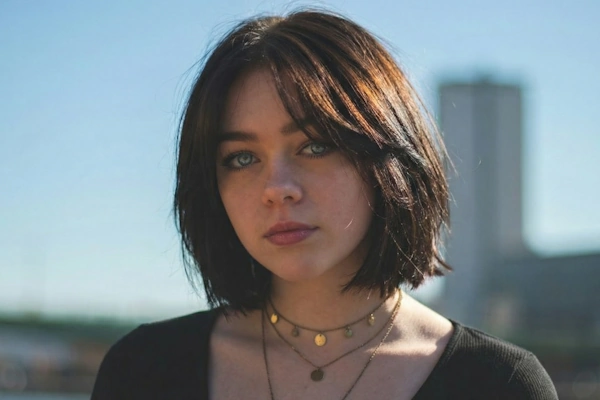

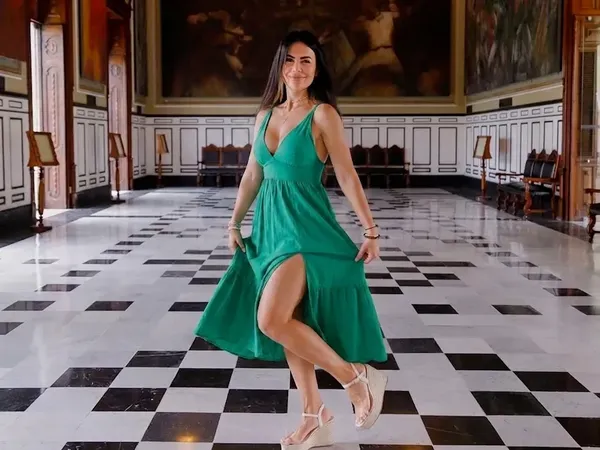

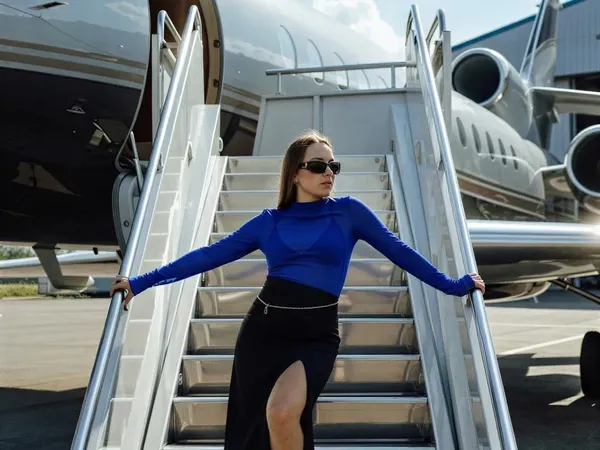




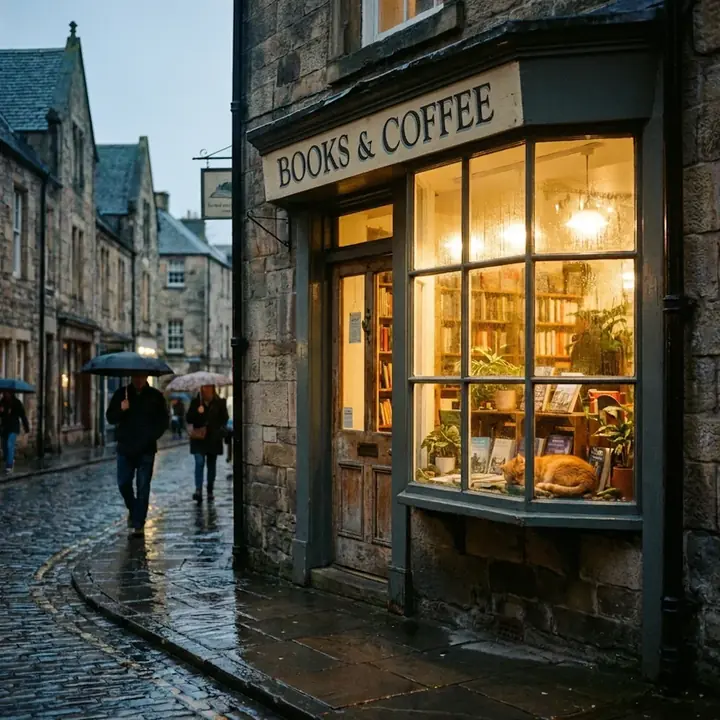





Open a 600 pixel photo in any editor, type 2400 in the width box and press OK. The file is now four times wider and not one bit sharper, because the editor has nothing to work with except the pixels you gave it. That is the whole problem with increasing image resolution, and it is why the honest answer has two halves: find the biggest version of the photo that still exists, and when that is not enough, let an AI model draw the missing detail rather than stretch what is there. Here is what resolution actually means, how many pixels a screen or a print really needs, why the resize box lets you down, and how to upscale a photo free.
How to Increase Image Resolution
Why the Resize Box Fails, What AI Does Instead and How Many Pixels You Really Need
What Does Image Resolution Actually Mean?
A digital photo is a grid of coloured squares, and resolution is how many of them there are. A 1200 by 800 photo has 960,000 pixels, just under one megapixel. A current phone shoots somewhere between 12 and 50 megapixels. A photo downloaded from Facebook in 2010 might be 720 pixels wide, and a photo that arrives on WhatsApp is capped at 1600 pixels on the long side unless the sender chose the HD option, which allows 4096.
DPI, or dots per inch, is a different thing and the source of most of the confusion. It only means something at the moment of printing, because it describes how tightly those pixels are packed onto paper. The same 1200 by 800 file prints at 4 by 2.7 inches at 300 dpi or at 12 by 8 inches at 100 dpi. Nothing about the file changed. You spread the squares further apart and they got bigger. So when a printer asks for a 300 dpi file, what they are really asking for is enough pixels: the print width in inches, multiplied by 300. A file that says 72 dpi in its header is not a low resolution file. It is a file with a number in it that almost nothing reads.
A printer asking for 300 dpi is asking for pixels. The number in the file's header was never the problem.
How Many Pixels Do You Actually Need?
Fewer than you think for a screen, more than you think for a print you hold, and somewhere in between for a print on a wall. Work out where the photo is going before you touch it, because most photos need no upscaling at all.
- A phone screen. Most phones are between 1080 and 1300 pixels wide. Anything larger is being shrunk to fit, so a 1200 pixel photo looks identical to a 4000 pixel one.
- Instagram. Any photo wider than 1080 pixels is resized down to 1080 on upload. Sending more does nothing except give the compression more to chew on.
- A laptop or a 1080p television. 1920 by 1080. A 4K television is 3840 by 2160, and even that is shown from across a room.
- A 6 by 4 inch print. 1800 by 1200 pixels at 300 dpi. This is the strict case, because a 6 by 4 gets picked up and looked at from a foot away.
- An A4 print. About 2480 by 3508 pixels at 300 dpi, or roughly 1980 by 2800 at 240 dpi, which is very hard to tell apart from 300 on a photo print.
- An A3 poster or a canvas. Wall prints are seen from a few feet back, and at that distance 150 dpi looks clean. That brings an A3 down to about 1750 by 2480 pixels, which is less than a decent A4 held in the hand.
The pattern is that viewing distance matters as much as paper size. The 300 dpi rule exists because that is roughly the limit of what an eye can resolve at reading distance. Double the distance and you can halve the dpi without anyone noticing. A 2000 pixel photo, which is what the NeonSnap upscale tool returns, is enough for every screen in the house, a 6 by 4 at 300 dpi and an A4 at around 170 dpi, which looks fine on a wall and slightly soft if you hold it under a lamp.
Why Does Resizing in an Editor Not Work?
Every image editor can make a picture bigger. Preview on a Mac, Photos on Windows, Photopea in a browser and Photoshop all have an image size box, and all of them do a version of the same thing: for each new pixel, look at the old pixels nearby and average them. Bicubic, the usual default, weighs up the sixteen nearest neighbours. Lanczos, the option people recommend on forums, looks a little wider, and in practice the two are hard to tell apart. Both give you a smooth, slightly blurry enlargement, and there is no setting that does better because there is nothing better to be had. The information in the file is the information in the file.
That is still the right tool for small changes. Going from 1800 to 2200 pixels so a print fits a frame is fine with bicubic and nobody will see the join. It is the two times and four times jumps where it falls apart, when a 500 pixel face becomes a 2000 pixel smear and the sharpening you add afterwards draws bright halos round every edge without putting back a single eyelash.
How Does AI Upscaling Increase Resolution?
An AI upscaler does not stretch the pixels. It reads the photo and draws a new, larger one that matches it, using what the model learned from millions of photographs about how skin, hair, brick, fabric and leaves look up close. Where a bicubic enlargement sees a soft beige blob, the model sees a cheek and paints skin texture onto it. Where resizing sees a grey smudge along a roofline, the model sees tiles.
For textures and scenery this is very close to magic. For faces, writing and logos it needs watching, because the model is inventing plausible detail rather than recovering real detail, and a face that was 80 pixels wide in the original comes back sharp and slightly wrong. The guide to fixing blurry pictures goes through this from the other direction, and the rule is the same from both ends: the result is a very good guess, so feed the model as much real information as you can and check the faces afterwards.
Try it with NeonSnap
Make a photo 2K in about a minute
NeonSnap's free upscale tool sends your photo to Google's Gemini 3 Pro Image model with one instruction: return the same picture at 2K resolution, with sharper detail and texture and the composition and colours left alone. No account, and you can compare the result with the original on the page before you download it.
Try AI Upscale free →How to Increase Image Resolution Free, Step by Step
1. Find the biggest version that exists
This step does more than any software. The photo on your phone is bigger than the one you posted. The one in your Google Photos or iCloud backup is bigger than the one in the group chat. If someone sent it on WhatsApp, ask them to send it again as a document, which skips the compression, or with the HD option switched on. If it is a screenshot of a photo, go and find the photo. Every pixel you recover here is one the model does not have to make up.
2. Crop before you upload, not after
If you only want one person out of a group shot, crop to them first. The tool spends its 2000 pixels on whatever you send it, so a crop sent in gets all of them, while a crop taken from the result gets a fraction.
3. Upload it to the upscale tool
Go to the upscale page and upload the file. JPEG, PNG, WebP, GIF and BMP all work, up to 10 MB. The upload is resized to 1000 pixels on its longest side before it goes to the model, so a 6000 pixel original gains nothing, but a 300 pixel one loses a lot.
4. Run it and wait
Somewhere between twenty seconds and a minute. The result comes back at about 2000 pixels on the long side, roughly double the input, with texture and edges rebuilt rather than stretched.
5. Download it, and stretch gently if you must
Save the result and keep the original. If a print needs 2500 pixels rather than 2000, a bicubic resize of the upscaled file by that last twenty five percent is fine, because small enlargements are what resizing is for. What you should not do is run the result through the tool a second time hoping for 4K. The second pass has nothing new to learn from and tends to over-polish skin.
How Do You Check an Upscaled Photo?
Everything looks good as a thumbnail, which is how people end up printing a stranger. Open the result at 100 percent, not fit to screen, and go straight to the parts the model had to guess hardest: eyes, teeth, freckles and moles, anything with writing on it, and any pattern with a regular repeat, like a brick wall or a knitted jumper. Then put the original beside it at the same zoom. It will be sharper, that much is guaranteed. What you are checking is whether it is still the same person.
If a face has drifted, the original was too small for a portrait and the result is fine for the background but not for the person in it. Use it smaller, or find a better original. If the texture looks waxy, the model has over-smoothed and a mild version is usually better than a second pass.
What Are the Other Ways to Increase Image Resolution?
An honest list, because you may already own one of these.
- Windows Photos. The Photos app on a Copilot+ PC has a Super Resolution button that enlarges up to eight times, running on the laptop's own AI chip. It is a repair-style model rather than a generative one, so it is faithful but conservative, and it only exists on that hardware.
- Google Photos on a Pixel. Zoom Enhance, under Tools on a Pixel 8 Pro and later, upscales a crop on the phone itself. Good for scenery, less convincing on small text and faces.
- Lightroom and Photoshop. Super Resolution in the Enhance menu doubles the width and height, so four times the pixels, and keeps faces faithful because it stays close to the original. It needs an Adobe subscription and does its best work on raw files.
- Topaz Gigapixel. The professional desktop option, with separate controls for noise, sharpening and scale and the ability to batch a whole folder. Topaz stopped selling one-off licences in autumn 2025, so it is now $149 a year on the personal plan.
- Upscayl. Free and open source, runs entirely on your own computer, enlarges up to sixteen times. It needs a graphics card with Vulkan support, and the results depend heavily on which model you pick from its list.
- Browser tools like NeonSnap. One upload, one result, free, no install. Less control than the desktop apps, and the right answer for the one photo you need by tonight.
When Is 2K Enough, and When Do You Need More?
Two thousand pixels on the long side is enough for anything on a screen, anything on social media, a 6 by 4 or 7 by 5 at full 300 dpi and an A4 that will hang on a wall. It covers most of what people are actually trying to do when they search for a way to make a picture higher resolution.
It is not enough for an A2 poster you want to stand close to, a large canvas at full dpi, or a tiny crop out of a big photo, where the maths simply does not work: a 200 pixel face cannot become a sharp A4 face, whatever tool you use. For those jobs, start from the largest original you can find, crop before you upload, and accept 150 dpi for anything that lives on a wall. For a scan of a damaged print, use the restore tool first, because upscaling sharpens the creases along with everything else; the guide to restoring old photos walks through that order.
lightbulb
If a print shop tells you a file is too low resolution, ask them for the pixel dimensions they need rather than the dpi. Then you can see at a glance whether an upscale will get you there, or whether the honest answer is a smaller print.
Frequently Asked Questions
Can you actually increase the resolution of a photo?
You can increase the number of pixels, but nothing can recover detail the camera never recorded. Resizing in an editor spreads the existing pixels over a bigger grid and the result is soft. AI upscaling draws a larger version of the photo using what the model has learned about how skin, hair, fabric and scenery look up close, so the result is sharp, but on faces and text that detail is a well-informed guess rather than a recovery. Start from the largest original you can find and check the result at full size.
What is the difference between resizing and upscaling?
Resizing makes the pixel grid bigger and fills the gaps by averaging neighbouring pixels, which is what the image size box in Photoshop, Preview, Photos and Photopea does. It never adds detail, so a big enlargement looks blurry. Upscaling with AI uses a model that has learned from millions of photos to draw new detail that fits the picture. Resizing is fine for a small change of twenty or thirty percent. Upscaling is for doubling or quadrupling a photo.
How many pixels do I need to print a photo?
For a print you hold in your hand, aim for 300 pixels per inch: a 6 by 4 inch print needs 1800 by 1200 pixels and an A4 sheet needs about 2480 by 3508. Prints that hang on a wall are seen from further away, so 150 pixels per inch is enough for a poster or canvas, which brings an A3 down to roughly 1750 by 2480 pixels. Anything between 240 and 300 is very hard to tell apart on a photo print.
Does changing the DPI increase the resolution?
No. DPI is a number in the file that tells a printer how tightly to pack the pixels onto paper. Changing it from 72 to 300 without resampling leaves every pixel exactly where it was and just makes the printed version smaller. When a printer asks for a 300 dpi file, what they need is enough pixels: the print width in inches multiplied by 300. If the file does not have that many, the DPI setting cannot make up the difference.
How does the NeonSnap upscale tool increase resolution?
You upload a photo, the tool resizes it to 1000 pixels on the longest side and sends it to Google's Gemini 3 Pro Image model with an instruction to return the same picture at 2K, with sharper detail and texture and the composition and colours left alone. The result comes back at about 2000 pixels on the longest side, which covers a phone, a laptop, Instagram, a 6 by 4 print at 300 dpi and an A4 at around 170 dpi. It is free to try and does not need an account.
Is it free to make a picture higher resolution with NeonSnap?
Yes. The upscale tool is free to try without an account, and the result can be downloaded straight from the page. Scans of old or damaged prints are better off going through the restore tool first, which is also free to try, and then through upscale if they need to be bigger.
Make a photo higher resolution now, free.
Upload the biggest version you have and get it back at 2K with the detail rebuilt rather than stretched. Compare it with the original before you download.
Try AI Upscale free